Chubby's Computers repair,upgrade,custom build computers by customers specs with 100% garuanteed. refurbished computers and parts, Web Designing and our new feature VOIP Web Conference rooms at reasonable rates. 24Hour Trouble Call Line 202-213-0903 WE ARE HERE TO HELP AT REASONABLE PRICES ((( GOTTA GLITCH? WE'll FIX )))
Knowing What You’re Working With Helps Technicians
Getting help with your computer software can be easier when you know the correct terms to use. One of the biggest problems that new computer users have with technical support is not knowing how to correctly describe the problem that they’re having. And it isn’t fair to expect a tech support person to automatically know what a “thing-a-ma-jingy,” or “whatcha-ma-call-it” is.
The following describes the correct names for common components of software so that when you experience a problem, you can effectively describe an issue that you’re having and a technician can readily resolve it.
User interface – this is the visual design of a program. It may contain squares, boxes, words, icons, and buttons. If you’re experiencing insufficient memory for example, you might see black rectangles across the user interface of your software programs.
Title bar – this is the top-most part of a program that displays its own name or it may describe the contents displayed in another part of the interface. If a program is incorrectly coded, you may see a wrong description in this part of its interface.
Menu bar - this part of a program displays menu items and menu options. Some of the most common parts of a menu bar grants access to File commands, Open commands, Save commands, and Print commands. An example of an error in this part of an interface would be if an option was missing or grayed out (lighter in color).
Tool bar – this part of a program displays small icons across the top which represent tools. Clicking an icon will open a tool or process a command that might also exist on a program’s menu bar. Problems in this part of an interface are uncommon, however if you find yourself repeatedly clicking an icon with no results, you can correctly describe the problem by referring to the toolbar.
Minimize, Restore, and Exit buttons – these three buttons are usually located on the right-most upper part of a program’s interface and each allow you to minimize a program’s screen, restore it to its original size, or shut down the program completely.
Scroll bar – this convenient tool allows users to move data up and down the computer screen.
Status bar – this part of a program is located at the bottom-most part of its interface, and it usually displays small messages that indicate the progress of a command or task. If programmed incorrectly, an application might display the wrong information in this area.
Context menu – like the menu bar, a context menu displays when a user right-clicks on something. It displays commands just like what you see on a File menu or a Help menu.
Input box – input boxes are usually small rectangles that allow you to type data into a simple interfaces like a webpage or browser window. If you find that you can’t type information into one of these, you can effectively resolve the issue with a technician by calling it an input box, rather than a “white rectangle,” or “place to put in text.”
Button – buttons perform a command after a user clicks them with a mouse. Problems occur when the text of a button is grayed out or if it doesn’t appear to sink into the screen when clicked.
Check box – a check box is a small box that allows a user to indicate several choices among many. When clicked, a small “x” displays inside a box. Similar to the check box, a radio button allows a user to indicate a single choice among many. Problems with radio buttons and check boxes occur when a user makes one choice, but the interface reacts as if the user made many choices (or none at all). When describing a problem to a technician, be sure to indicate whether the problem occurs with a check box or a radio box. Computer novices mistakenly interchange the names of both of these controls.
Making Your Computer Work with You - Not Against You
Although you did not design or build your computer, you can turn it into a device that responds to your way of using it as if you were its original engineer or programmer. This is because the computer is a mere platform - a blank canvas, if you will - waiting for you to direct its operation or paint the picture of the perfect machine. All this is possible from making just a few changes in your computer's current configuration.
Your computer's main configurations are housed in Windows Control Panel. Within this small section of Windows, you can make some major changes from the way that your computer looks to the way that your computer responds to the people who use it. But your specifications don't just apply to Windows, they also apply to the many software programs that are installed onto the computer (not to mention that many software programs can be further customized through their own configurations). We aren't going to cover them all, but we will introduce some of the most popular so that you can get a feel of the control over your system that these configurations give you.
Users. Before we get into the individual settings, it's important that you understand that each set of configurations you make is specific to the users that sit down in front of a computer. Changes made to a system by one person will differ from the changes made by another. Enabled by a username and password, individual desktop settings (icons, background picture, and other settings) are available after logging onto Windows.
Display Properties. Through Display Properties, a user can change the background of the Windows Desktop, add a screensaver, change the overall color scheme and fonts of Windows, and adjust a computer's color depth and/or resolution (screen area). Not just a bunch of preference settings, display properties help individuals who have to deal with visual problems.
Accessibility Options. Speaking of visual problems, another setting that's useful is accessibility options. This setting allows people with disabilities to use a computer that accommodates vision and hearing problems.
Keyboard and Mouse Options. The keyboard and mouse controls give users the option of speeding up or slowing down the movements of both of these peripherals. For those entering the United States from a foreign country, users will appreciate how Windows grants use of keyboard layouts native to their original language. Other uses will appreciate the different selection of cursors and the ability to add additional ones.
Passwords. Since the computer in use may be shared with others, Passwords gives the almighty administrator the means to determine whether all users will share the same preferences and desktop settings or if users can customize preferences and desktop settings.
Regional Settings. Things get really personal in Regional Settings - as this configuration makes changes according to a user's location and language. Options available can accommodate a person's preference for the display of numbers, currency, time, and date format.
Sounds Properties. Multimedia fans can create a rich PC environment filled with sound through this setting. Sounds can be assigned to numerous events and they don't even need to be the default sounds installed by Windows. Users can download sounds from the Internet or create their own sounds with a microphone.
Dialing Properties. Even the way a user connects to the Internet can be customized. Through Dialing Properties, users can determine how a phone and modem dials into an Internet service provider.
From just these basic configuration options, you can create your own experience with a computer each time you sit down in front of one. Customizing your PC is what makes using a computer truly unique and enjoyable, so have fun and build a situation at home or a work in which you'll love to work with everyday. Should you feel a little nervous about it at first, remember that your computer's original configuration can be saved to a back up file should you ever want to restore it to the same state that it was in when you first bought it.
It really makes me mad as a smallbusiness owner, that I take the hard money I have made and place it in a advertisingcampaign just to find out that the company that I place the ad with is a FAKE. The type of advertising I'm talking about is solo ads and opt- in ads to thousands of email address. You want people to know that your business is out their. To think that their are people out on the Internet that are placing FAKE sites out there just to grab your hard earn money is sicking. I made the mistake, Now I want to put the word out , so that you do not make the same mistake as I did. Before you do business with a company on the Internet, make sure you check the company out. Here is a web site you should BookMark and be regular at. SCAM WATCH This site is updated with a list of site that you should watch out for. This site has all the government agencies you need to contact if you have been scammed. I did not know this info then. But you know it Now. BE SAFE
Hello and Merry Christmas and Happy Holiday. Well I know everyone been shopping and all the pockets are dry out. No green or cards to spend anything else. So folks I been getting your email and I understand the money is gone or getting close to it. I have been ask to find some software that is cheap or FREE. The software that everyone wants is Spyware and Anti Virus software. Here are a few programs that I like .
(A) CT Cookie Spy { FREE}: a good program that I use a lot. it is able to collect all the cookies and Spyware on your computer and place in the program and shot out information. What,where, and when . The best part I like about this program is the information date. CT Cookie Spyware will tell you when the spyware was placed,who by and how long it will stay on your computer. the longest date I have seen is 98 years.
Instructions: Below will be links where you can download CT Cookie Spy. Once you download the program and click to upon it. The program will collect all the Spyware and place it in the program itself. You will see a list of the spyware next to a check off block. check off all the spyware that in off your computer, but watch out for some cookies like a paypal account or gmail etc... these cookies are useful. Once you have check off all the spyware and cookies that you want off your computer, click the delete button on the right. Once this is done, you have remove all the cookies and spyware off. I use CT Cookie Spy about twice or three times a week because I'm on my computer about 50 to 85 hours a week. so it depends on how long you are on the computer.
(B) Spyware Terminator { Free with some add on you pay for} This is a great program even if you have to buy the add ons. it updates itself, checks your computer on the spot to see if you have any viruses on it. checks any program that you are installing or opening on your computer. the program will allow or block any program that it thinks is harmful to your computer . You must decide yes or no.
Instruction: If you are going to download both the programs. Open CT Cookie Spyware first, then Spyware Teminator. Once you download the Spyware Terminator and open it. Make sure that you are on the Internet. This will let Spyware Terminator update itself for information on all new viruses that are out on the internet and then begin to scan your computer for all the known viruses .
BUYING A PERSONAL COMPUTER - General Information: Familiarize yourself with some of the computer language and terminology then shop at several different computer stores and test some of the hundreds of different models being offered. Most of the computers and programs are simple to operate and you can perform many valuable tasks as well as play games.
Keep in mind that the cost of the system you purchase will usually include only the basic "software" needed and you will probably have to purchase more later in order to do everything you want your computer to do for you. Most software is not cheap...
The basic system consists of the Central Processing Unit, a Keyboard, Screen (Monitor) and Printer. A "mouse" is used on some brands and a cassette recorder can also be used, mostly for games and short programs. A flexible disk (floppy disk) similar to a small phonograph record; or a hard disk, together with an instructional manual, contain the programs that tell the person... and the computer, what to do.
A component that changes electric signals into audio tones, called a "Modem" is used to link your unit with others over the telephone.
Across the country are located large computer systems which store a great amount of information on various subjects. You can hook the computer into one or more of these systems with a "Data-Base Management" program, and by paying a monthly user fee.
The smallest unit of information for the computer is the "Bit". 8 Bits make a "Byte". "Memory" takes two forms...RAM which means Random Access Memory, is a temporary memory picked up when you enter information into the keyboard or from a disk...ROM means Read Only Memory is measured in "K's" with 1,024 Bytes-1K.
The software program will display a "Menu" on the screen. You choose what you want the computer to do and press the proper keys specified in the menu in order to perform the task.
One of the greatest uses of the computer is "word processing", which is merely "glorified" typing, using the keyboard with the copy appearing on the screen as you type. You can correct or change your copy in just about any way imaginable and perform many other time saving functions before the copy is "sent to the printer" or to a disk to be stored for future processing or printing.
Before you make a decision on the purchase be sure you have a good idea of what computer applications you want. Are you going to use it extensively for word processing? For Accounting? Budgeting, Education, Entertainment, or perhaps a mailorder newsletter which requires fancy pictures and a good deal of art work, etc.
Pick up the brochures and booklets explaining the various computers and the software programs so you can review and study the various functions and make comparisons of ease of operation, price refund policy, etc.
When you shop for a computer system ask to operate the various computers yourself so that you will get the feel of each different brand.
Find out about the warranty and service, the availability of added hardware and software.
Does the dealer offer instructions with the purchase? Get the total cost for the unit and the software which will be required to perform the applications you want.
Purchase only the minimum software you need to get started and learn each program as you proceed. You will have a much better knowledge of just what additional software you will need after you have had the computer for a short time and have become more familiar with what it will do for you. However, since you will have substantial funds invested it will pay to purchase all the software necessary for your various needs so that you will get full value from your investment, but be certain you are not getting substitute programs or partial duplications of ones you already have.
What do you need a computer for? You can now purchase a computer that will run thousands of different programs. You can do just about anything; from games and entertainment to instruction, mathematics, engineering, managing any kind of data, to desk top publishing, business inventories and accounting. Those old timers in the accounting profession and in business management now look back over the many years of working without a computer and wonder how it was possible to accomplish what they did without a computer. Printers can now purchase a desktop publishing system for $10,0000 sufficient for many typesetting jobs that previously cost $60,000 just a couple of years ago. The computer-laser system is much faster thus saving on labor costs and by using plain paper at less than 1› a sheet instead of photo paper at 30› to 60›, they can cut operating costs extensively.
What kind of computer do you need? First look at the ease of use. Is it "user friendly"? Is the instruction manual easy to follow? Is there adequate software available for it? Does it give you a large enough screen to fit any work you will require? Can you "import" other compatible programs, images, etc., and merge with existing work? Does it give detailed realistic and high resolution results? How about color? Will you need color now or in the future? Is it easily expandable so that more memory or circuit boards, etc., can be added as your need grows? What type of printers will the computer handle?
Can you get questions answered and help when you need it. What about repairs, guarantees and service contracts? How much memory comes with the basic computer and is it going to be sufficient to handle all your projects? Considering the type of software being produced today you should purchase a system with no less than 256K and preferably much more. Also get a computer with at least two disk drives that will handle 2 sided, double density disks. The keyboard can be an integral part of the computer or detached. Detached is generally preferable because it gives you more flexibility. Pick a computer that uses a keyboard you feel comfortable with. Most computers now are built with standard keys. Be sure it is easy to control the "cursor", graphic keys, escape, repeat, break, reset and return keys.
As to the display window (monitor) you will need, if you are going to be doing a great deal of word processing (typing) a monochrome with green color is much easier on the eyes than black and white. If you are going to be doing color work or graphics you will need color monitor.
Printer: A printer is like a typewriter without keys. It prints out the information that is in the memory of the computer. The main kinds of printers are the "Dot Matrix", "The Letter Quality", and the various ink jet and laser printers. The dot matrix forms letters with tiny wires that punch a pattern of dots on the ribbon for each letter. Some are low print quality, but others look nearly letter quality. Letter quality printers produce typewriter quality print and are referred to as impact printers.
Certain brands of electronic typewriters can be interfaced (connected) with the computer and used as a printer. If you plan on going this route be sure to give it a good test before you buy. Many interfaced typewriters print slowly and also there is the possibility that the warranty on the typewriter may be voided. There are several different ways the paper is fed through the printer. Check to be certain the method used is adequate for your purpose. Also make sure the printer will accept the width and length of paper you require. It will take at least 80 characters for 8 1/2" paper and you will need 132 column printer for accounting or spreadsheets. Check the speed to determine how fast the printer works as there is a large variation between various types and brands of printers. The Laser printer is a great addition to the family of printers. Most good quality laser printers cost much more than Dot Matrix or Letter-Quality printers, but for many purposes they are well worth the difference. They have a great advantage when working with graphics, design, typesetting or desktop publishing. Perhaps a mailorder newsletter which requires fancy pictures and a good deal of art work etc.
Modem: You can use your computer to connect to hundreds of different sources of information through the use of a modem. This is an accessory that connects the computer to the telephone line. How fast you are able to send information over the phone is determined by the Baud rate. You should probably have a modem with 1200 baud that will work with the majority of others. Check with your dealer to be sure it is adequate for your system. You will need communication software programs in order to send and receive stored information.
Along with the line of communications, you can get a speech synthesizer or voice recognition add-on that converts your spoken words into writing or visa versa. To create computer game controllers, graphics and pictures you can get such things as light pens, plotters, mouses, etc. Other more expensive devices allow you to import photos, text, etc., directly into the computer for hard-copy printout. You can add circuit boards to your computer which will activate electrical devices; turn them on or off, dial your phone, or make mechanical monsters do what you command.
Software needed: Software is simply instructions that tell the compute what to do. It comes in the form of cassette tapes, diskettes or hard disks. Applications software will do exactly what you want to do; such as play a game, maintain a mailing list or teach mathematics, etc. Operating systems are programs that manage all the things that are going on inside your computer. Each different brand of computer has its own unique operating system so the software for some will not work on others. (Incompatibility) Different versions of the same software programs are made for each different type of system. However there are several operating systems that are "standard" compatibles and work on many different brands thus making thousands of programs available for most computers. Be sure you buy a computer with an operating system that can handle a great number of the programs available. Determine what you want the computer to do for you; games, accounting, name lists, desktop publishing, etc., then find out what software programs are available for that particular brand.
You can get software for about any kind of game, for Music composition, picture creation and transfers; for all kinds of educational programs, Budgeting, home management, mathematical analysis and engineering. business software includes word processing (which merely means an easy and much better way to type than with a typewriter), spreadsheets for financial analysis and planning, accounting, mailing lists, and just about anything else. For example, using the computer for all accounting activities for a firm is a terrific time and money saver. You can write the checks, enter receipts, accounts payable, accounts receivable, control inventories, prepare payrolls, and make the journal entries. All of these entries are automatically posted to the general ledger, eliminating hand posting altogether, and the trial balance, balance sheet, income statement, quarterly payroll reports, W-2 forms, income tax returns and other financial records are all ready to print out.
Before you settle on what software to purchase you should check out how easy it is to use. Are the instructions and screen help menus easy to understand? How fast does the program run and does it do everything you need? Does the software publisher furnish support and updates, with a number to call in the event of problems? Is the warranty adequate? Can you return the software if it doesn't perform as represented? Is it protected so that it is difficult or impossible to make a backup copy?
You can get software in the form of cassette tapes, cartridges, diskettes or hard disks. However cassette tapes and cartridges have several disadvantages including the fact that much of the best software is not available on cassettes. Preferably, settle for no less than programs on two sided-double density floppy diskettes. They are easy to use, store a great deal of information, reasonably priced and you can find anything on the disk almost instantly.
Programming: Would you like to write your own software program? Well, they try to tell you that it is easy. Don't you believe it. It takes a great deal of study and hundreds of hours at the computer to learn to the extent you can create any worthwhile programs. Even though it is a challenge and may be an enjoyable pastime there are so many programs available today that unless you are an expert programmer there is little chance you can come up with one that is marketable.
Basic is the most used computer language and is probably the one most valuable for you to learn, but since there are several versions a program that runs on one computer may not run on another brand. Pascal and Assembler are languages which are used mostly by expert programmers. Scientists and engineers can use a language called Fortran for best results. Several other languages are used for computer and video games.
Taking care of your computer system: It is good policy to keep your computer and printing equipment covered with anti-static dust free covers when not in use. Keep your screen and other equipment clean and free of dust. Use a head cleaning kit to clean your disk drive in accordance with manufacturers recommendations. Place your computer so that air circulates freely around it. Use three wire plug ins with a ground and get a surge protector to protect your computer from sudden voltage changes. Use a felt tip pen for diskette labels and don't touch the magnetic surface. Keep your diskettes stored away from sunlight or heat and if you spill coffee or drink on a disk, forget it!
Read the small print of your warranty so you will know exactly what to expect in the event of problems. Keep the original boxes and packing materials so that you can safely ship your equipment back for repairs or adjustment.
Computer errors can pop up when least expected, they can cause the entire system to suddenly shut down, and they can inadvertently corrupt data to the point where it can’t be deciphered. Although they can’t always be avoided, it’s important to remember that computer errors can be corrected. The key is to understand what computer errors are, understand what they mean when they show up, and understand how to minimize their occurrence in the first place.
Basically, computer errors are the result of a number of things that may or may not have anything to do with the way the computer is used. They “operate” whenever there’s a conflict among commands. Remember that computers essentially run off of a series of commands and it’s usually a smooth process. But when one command conflicts with another command – or when one command asks for a process or information that isn’t available, the computer returns results that aren’t useable. That’s an error.
A prime example of this kind of error is when users attempt to use software that isn’t applicable for their system. Almost all software accompanies a list of system requirements which dictates what a computer needs to have in order for the software to work properly. To minimize errors of this sort, always verify that your computer has the required components. A project management program that you’re interested in may require a specific operating system, like Windows XP for example. And although this program may install just fine on a Windows 98 machine, it will generate a multitude of errors once its started.
Insufficient memory will cause errors as well. That’s why software programs include minimum memory requirements. A program that needs 14MB of memory will generate errors on a computer that only has 4MB of memory if it runs at all. The same goes for disk space, monitor color depth and resolution. In these situations, problems occur the moment that a piece of software attempts to access the things (hardware, memory, space, resolution, etc.) that it cannot find.
Because some programs share common files, errors can also occur when these shared files are not up to date. For instance, let’s say that Program A is already installed on a computer and it’s working just fine. Then let’s say that the user of that computer downloads and installs Program B. Program B uses a file that Program A installed much earlier, but when Program B is run, errors popup. Those errors are the result of Program B attempting to use an outdated (shared) file that was installed by Program A. In order to fix that problem, the user would have to download an updated version of the shared file (which to say the least – is not an easy thing to find or do).
Sometimes, errors occur because a system doesn’t have the required drivers or the drivers that are on the system are the incorrect version. Both errors in these cases can be resolved by updating the computer on a regular basis. Microsoft provides a section on its website that can automatically update a computer online and it does this at no cost in an effort to reduce errors like this. Always try to keep your computer updated so that should a program share a file, it will share a file that has been updated on hundreds of thousands of computers, like yours.
This article doesn’t even begin to cover the entire gamut of computer errors – but additional information regarding how to get help with a computer issue (including computer errors) can be found in our article titled, “Computer Help” no matter what the problem is.
$75.00 cash. Offer good until December 2 2009 and the first 500 orders Act Now. Call 202-213-0903 for all oders
Now above special is something we are giving our customers and future customers. We would also like feed back from you. let us at Chubby's Computers know how we can better serve you by placing your comments on this page. Check out our web page at http://www.chubbyscomputers.com/my_page.htm Not only do we at Chubby's Computers repair and upgrade computers. we at Chubby's Computers sale new and refurbished computers and parts. go through our web site and see if we have what you need. Chubby's Computers also provide 24 Tech Support by phone 202-213-0903 or live tech support by Live Tech Suport chat message at techsupport@chubbyscomputers.com Soon to come Live Web Tech Support at http://www.chubbyscomputers.com/webconferenceroom.htm Chubby's Computers is here to help. GOTTA GLITCH? WE'll FIX!!
Hello! My name is Norris R Kingsbur and I'm the owner of Chubby's Computers, base in Washington DC USA . I have had the pleasure of teaming up with some of the newest and brightest people on my staff, to provide you with the best service, products and tech support on or off the internet. Our business specialty new and refurbished computers and parts, Web designing and costumed design Desktop or notebooks. Chubby's Computers can save you on telephone bills traveling expense and much more with our Voip conference center on the web. We are a company that believes in honesty and integrity. No hype or lies...just the truth about our products you see. We have highest trained support staff you will need. Support is just an email or phone call away, including ICQ and Yahoo and , as well as, Web conference room. We deal with your questions and provide the answers in a fast and prompt manner. Our company offers you the right training for you to succeed in managing your conference room. Our clients come first.
Chubby’s Computers is a professional Washington DC based Computer Repair company that offers, website design and development, computer system design, web-hosting, computer repair, system design, computer upgrades, computer parts, computer virus protection, consulting and computer hardware sales. Chubby’s Computers offers same-day support both on and off-site.Click Here for live Tech Support
Chubby’s Computers understands every aspect of Web design and Internet commerce, from developing the right image to product & service, to knowing how to build that image. Chubby’s Computers remains on the cutting edge of Web design standards to bring you the very latest in web design technology.
Chubby’s Computers offers the most competitive prices on the market. Their designs are customizes and unique to your business needs. Call today your business will receive top tech support with the utmost care and professionalism.
We bend over backwards just to hear from you. Let us know what you think about our website. or troubles that you are having with it. Our goal is to serve you the best way we can. Go by the site if you have not been there yet, Click Here
Friday, January 12, 2007
Why Beat Up Your Computer? When you can Upgrade it. I have customers that have , thrown their computer out back doors, windows, front doors. Toss computer in trash cans and much more. The main thing, you have to have patients when you are working with any kind of machine. Remember this is not a child, where you can tell it what to do, when , how, jump. It ’s always good to call your local computer repair shop, or fix the problem yourself. there are thousand of place where you can buy parts to upgrade your computer if you are willing to do it yourself.
Like ComputerGeeks.com, Tiger Direct, and many more. You can use the web and find a list of places just by typing in computer parts or used computer parts in the address bar of your internet browser. Thousands of venders, internet web shop will be at your finger tips.
Use your local telephone book, for the vender Need you. Never work on a computer when you are angry. You cause more harm than good. Walk away for a few minutes a hour and so on until you calm down. For those of you that are new to computers and want to work on them yourself. The Internet, library and book stores are great resource tools.
Here is a good story. One of my customers runs a small business out of her home on a little table in a corner. Well one day, she was doing the laundry in the basement and her little 6 year daughter was playing in the back yard. Well the little girl must have been bored. So she brings her toys into the house and began playing in the living room. Well as the mother tells it. Things were to quite. She came upstairs into the living room to find with shock madness in her eyes. That her little darling, the love of her life was in the middle of the room with mommies computer on the floods surrounded with toys. Mothers little darling got bored and place the computer on the floor with toys. Mommies little darling filled every hole that was on the computer with her own recipes. One cup dirt. One cup water. Two spoon of jelly in the cd drive, floppy and zip drive. I wonder where she got those cooking recipes from. But that was just the beginning. As mommy stop Her. She Was just finish cleaning up the computer with a dish cloth and water, which she poured all over the computer and inside. As mommy tells the story, her darling daughter looked at her and smiled with the following words “Mommy I’m just like you”. The real sad part about this story, the mother got so mad about the computer. That she kept a corner of the basement for three weeks before she called me. In all my years working on a computer. That was the worst thing I have ever seen. And for this person to call me to fix this computer was crazy. When you get mad at you computer, step back and calm down.
Hello , sorry for the long delay in posting to this blog. been under the wealther lately. but we are back on our feet. Now you can reach us 24 hour s a day and by email: services@chubbyscomputers.com and phone 202-213-0903 and now you can come right in to the web conference room. www.chubbyscomputers.com/webconferenceroom.htm alot of the time, I'm in the field working (on call out side the office) so if you ever give us a ring or email us or come into the web room leave a message with your email or telephone No.# or leave a text message in the web room just to say hello. If you have a problem with your computer, we can help. Oh yes I forgot to tell you about our new Web Classified site. for all you people out there like me that are self employed or work from home, that need affordable site to place your classified ads. Norris Classified Page > www.chubbyscomputers.com/Norrisclassifiedpage.htm stop by some time and take a look. It's nothing Fancy like the Big Boys site. But it gets the job done. send me a email and let me know what you think. Or post a comment on my blog. I don't remember if I told you about the new forum web conference I'm start in January 2007. It' call Business to Business round table. A Live forum. Where people from all walks of life come to talk give advice and meet other people that are in business. The home business person like my self will enjoy this,recieving freash new ideas. Their will be people that are looking for opportunities, maybe investment. Meet new contacts it just endless what can happen there. But the main objective is to talk, chet and bring new ideas on the way you can start a business , run your extising business , meet new people that can boarden the mind. Well in January, we will get together on Monday - wensday and Friday at 7pm to 9pm. We will talk about any subject that will help be a benifit in your daily work schedule. learn something that will help you and others in business. That's what the Business to Business round table is all about. helping each other succeed. So the web site address is www.chubbyscomputers.com/webconferenceroom2.htm hope to see you there one day. If you have any question about the Business to Business Round Table or need more info . fill out the form link below. I will be starting a News letter that will be answering your question . And on this blog too. So until I write again, Have A Very Merry Christmas with all the Joy to you and your Family a Very Very Happy New Year.
Pleas could someone tell what the H is happening in Washington DC. Close to a Billion just to build a Baseball Statium. Is there something wrong with this picture. Don't get me wrong I love baseball. But when dose baseball come before Education, building and repairs to schools, Keeping our Fire departments and Police department up with the best possible tools they needed to run. A few years back they where closing down fire station, Libaries and etc because we did not have the money, but we can take almost a Billion Dollar to build a Statuim & buy a team.
why did the Mayor close down DC General. Oh it was costing to much money to keep up. Who do you think is going to be footing the bill for the new statuim in the long run. Yes the People That Live in Washington DC, not the people that come to the game. To be the Nation Capital, we have the worest school in the naton. If you come to the nations capital come see the schools that should be repaired or need to be put down. You ask yourself, where is the money for the schools. Why is city Not getting the teachers they need. Yet every year the Mayor can travel out of the country when he want. Why do we have to worry about the drinking water . We are the National Capital, it should'nt be that way. I so proud of Maryland & Virginia, because they saw that the children came first. The children are the future. Higher education and a better life for the citizen of Maryland and Virginia. The Mayor of the Nation capital should have learn something from that. Stop rasing the taxes trying to running the family out of DC that have been here years. Most family members have no choice, but to sale their home or have the city take it. Now Mayor Anthony Williams says he not running again. I look at the blue skys and put my hands together and say" THANK YOU GOD, OUR HEAVEN FATHER" THANK YOU. I would rather have the control board or a Republican as mayor than to see Anthony Williams in one more term. For
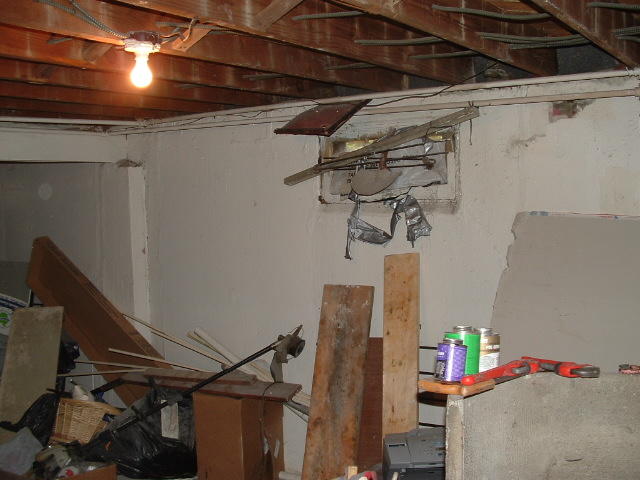
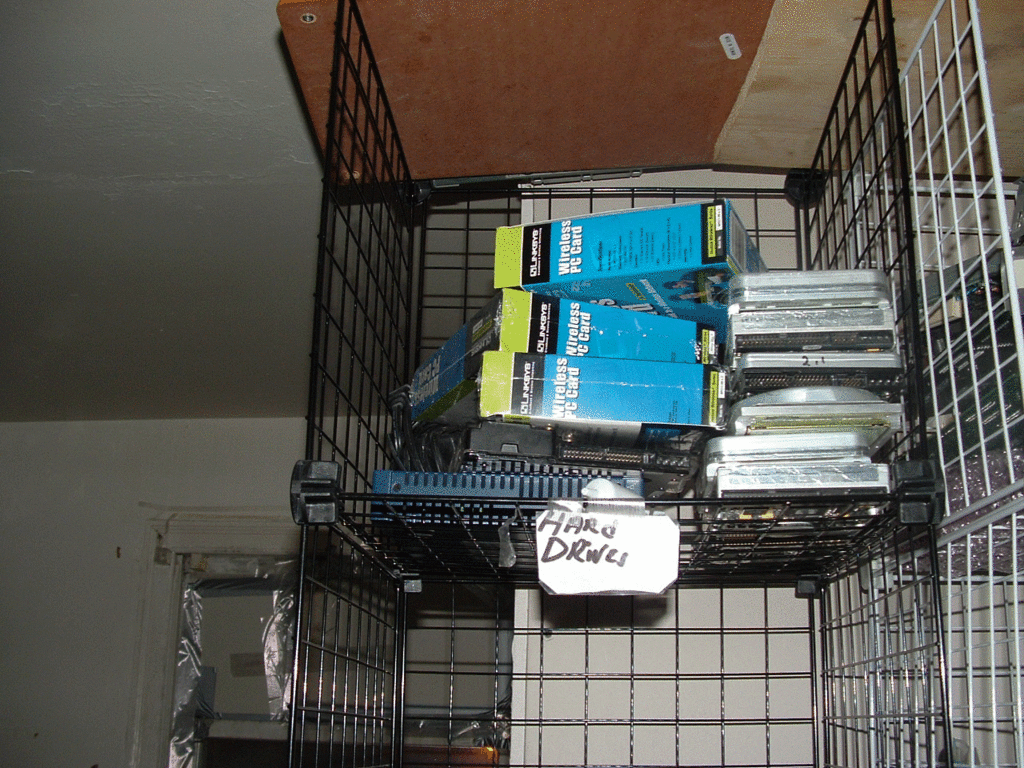
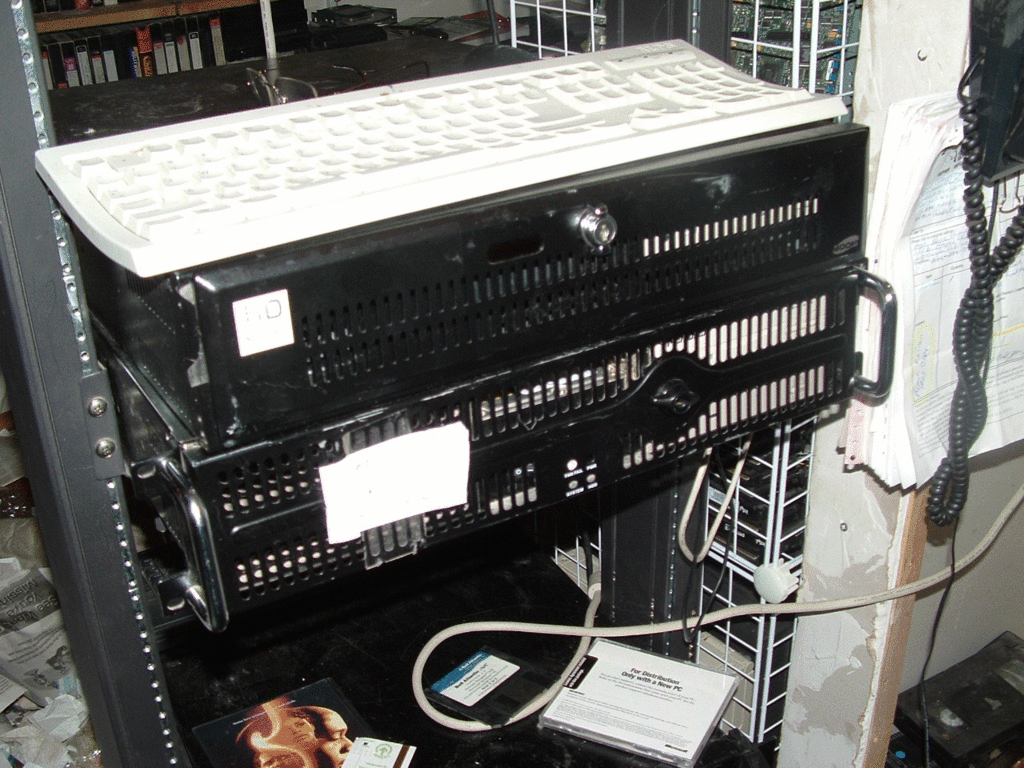
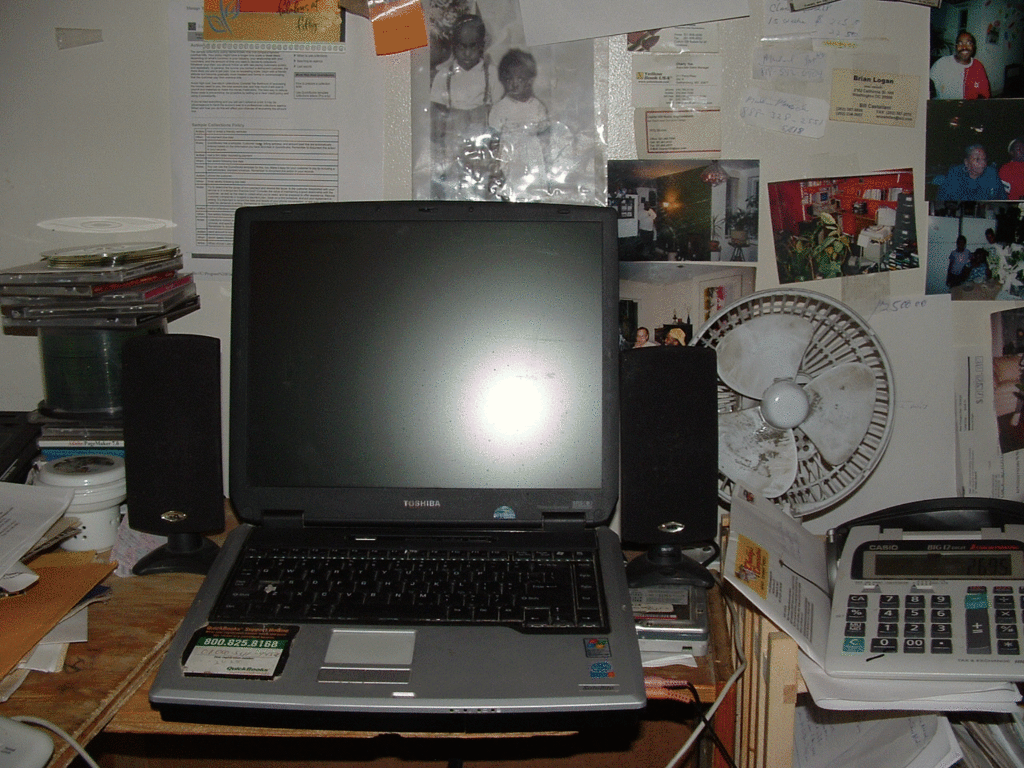
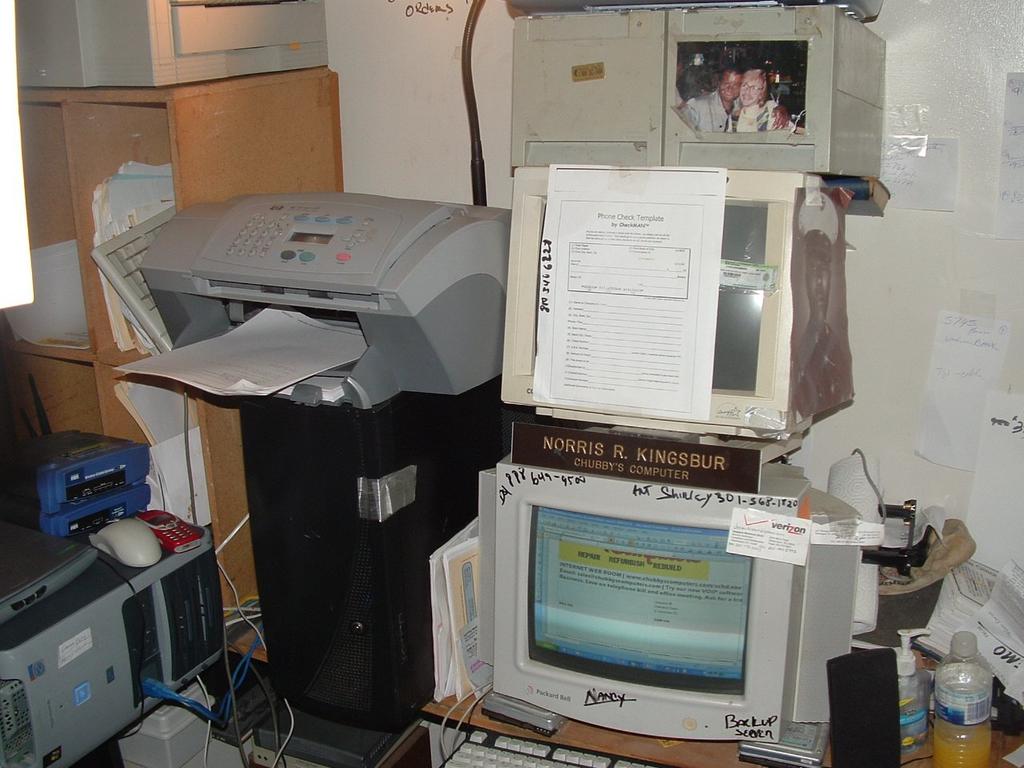
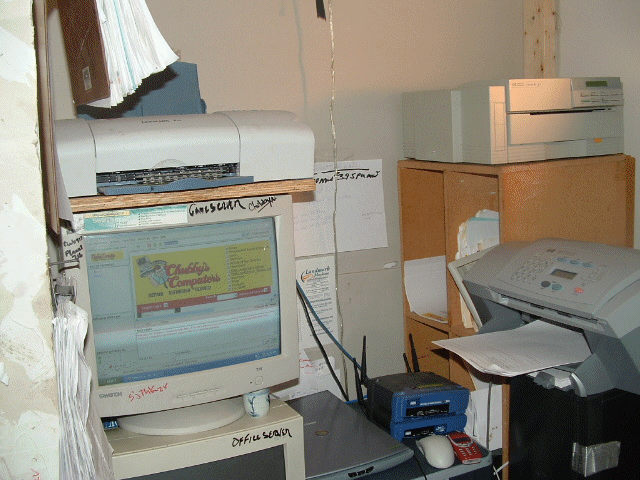
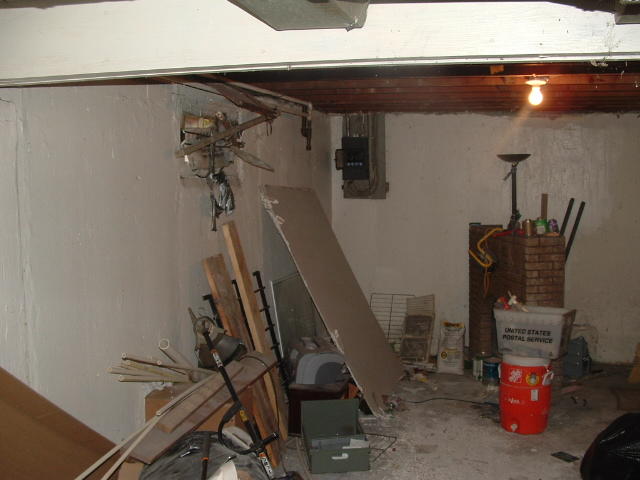
In the earlier Blog I mention that I would put of pictures of my small corner office space, in the bedroom. Below in the basement of my house ,we are building a workshop and office space for my business. I move out of the office Downtown into my bedroom until the project is done. the space I have is 5 feet wide and about 5 1/2 long as you can see in the picture I put up Drywall and a frame to divid that little corner space for my little corner office. Now you see the first picture. Where the white stud is at. My office will begin their and work its way forward. Next to the office will be closet space, then the restroom (AKA "bathroom full and across from it will the lanunary area. Most of the work I' doing myself and having it check after I finish, by a master plumber amd eletriction.I budget my money and can complete this task under $5000.00 . Now the other pictures is the work area at my desk. I have 5 Servers ,only two of the are working now and two computers conected to the network with one wireles Notebook. 2 telephone lines and server line. I got just the basic items. all of whick I built from scratch. Even the hp computer I gutted it and replace everything. When I first started out , I did not have the Fax machine you see now.I went to the flee market and bought an old 386 computerand went to office depot and boughta color printer. Now I took all this with the 386 computer and place windows 95 and a software call Quick fax. I believe you can still down load the software. it turns your dos or windows computer into a fax machine. Just set in up with the color printer and scanner and you will recieve faxes automaticaly. remember the sofeware's name Quick Fax. Remember to Save your money and spend it wisely on your business.I work from 8 to 16 hours a day some days more. That driving force won't let me stop. Now you see my little corner office of my bedroom. I should be moving into my basement office sometime on the 20th of November.
Chubby's Computers Began in October 16 1998, in my home basement in Washington DC 1501 E Street SE. That part of Washington DC is call Capital Hill. Our purpose is to provide great service and products to the Washington DC Metro Area. Do you know that their are billions of people in the world that do not have a computer and do not know how to use one. Did you know that United States is One of the worlds richest country in the world, Yet we have millions in this country that can't afford a computer or use one. There are small areas in this country where some schools are lucky to have 4 to 8 computers to use for the whole school. Or their budjet is so tight ,they can't afford to fix the one that are broken. In Washington DC. we do have people that can't afford a new computer and monitor and so on. And I notice this as I fix computers in my home for friends and neighbors I asked myself how can I provide a service and product and yet make a income to live on. The first thing I asked myself, What amount of an income did I need to live comfortable on. I made notes and figures. I talk with some people and friends that had business. I came up with a figure that I could live with. My figure was $49,600 to $85,000. I believe it to be a comfortable living to start off. Maybe a little higher as the business grows. But this was it. I made mistake on the way and I learn from that. So once I started Chubby's Computers, I had to put the word. That means ADVERTISING. Do not go out spending alot of money like I first did. that was my first mistake. Yes the name was out there, but had no money to work with. If you going to start a business. Start off dirt cheap. Newspapers,flyers, and even tv. I start off with flyers. Now to get the most out of your money, make a flyer with postcard ads 4 4x5 in size. Use Microsoft publisher or any freeware you can get from download.com or shareware.com . Now I will tell you why this is so great. Now I have 4 4x5 post card ads on one sheet of paper. this is my master sheet. Now take your master sheet to Staple or Office Depot to have them copied. If you get 3000 sheets, it's cheaper and more cost affective. Price would range from 3 Cent to 5Cent a sheet. Between $95.00 to $120.00. Now remember that you have 4 4x5 postcards on the sheet x 3000 will give you 12,000 flyers to place on doors cars or hand them out. You can get kid in the neighborhood to cut them and pass them out. The Next is cheap news papers in your area or internet posting of your ads. on the Internet, Most city and states have a directory that you can place your business on. Most are free or a small fee. Us it you can't go wrong with it. Another Advertising route is TV. I know you are saying ,"Tv is very costly. Now when I started off advertising Chubby's Computers. I try radio. Too costly. But late nite TV ads ran about $3.50 an ad at 30 second. Just let the agent know what your budget is. If you can handle $250 t0 $400 try it. Don't place the ad every month to start. Try every 3 to 4 months. And place the ads between 1:am and 5 am, 30second ads. Time frame before or after that will cost you more money. Remember tell the agent you are on a budget. The only high cost will be the designing of the Ad. do not make it fancy .The more fancy it it the more it will cost. Remember KISS ALWAYS ( KEEP IT SIMPLE AND SMART) depending on the location that you are at designing your ad will cost about $400 to $1000. That is the biggest cost of all. The Work space I started Chubby's Computers was in a corner table in the living room. Started part time My first year or second I made between $5000 to $8000 that was on a corn table taking computers apart and repairing them. Now This is were you make mistake. I thought I could get a office. I thought it was time for it. I was wrong. that office expense started to take away from my profits to a point I had to close it down. If you not ready for the big move, don't rush it. Take you time it will come. Work on the corner table or take a spare room and make it your office. You can write off that section off as business expense. Always keep good record. Now that I move out of my office. I took part of my basement in my house. I going to build a work shop. So until it is done. I build a wall in my bedroom to make a small tiny office space. Will move into my new office and workshop on or about November 10 2005. Here is the first picture I took today of the basement AKA Workshop to be.
Born in city of Washington DC. old Freeman Hospital. live at 625 K Street SE, Mother Barbare E Kingsbur and Father Larfate Kingsbur, Jr. US Marine, WHOORA. with four sister and two brothers,I have a son and two daughters and god has bless me with three grand children . My schooling in Washington DC and Portsmouth VA ,Cradock High. Grauated from Charelstown High West Virginia and a year in Norfolk VA. at Old DU. before that, Job Corps,I stay for a year and ahalf. My major was plastering and drywall. Job corps is great for the hand on Job approach and training. My teacher, we called Pop Hailey. A great man. The First place I train at was Harpers Ferry, West Virginia. The best ten years of my life and where I became interested in computers was United States Navy. Put me on a ship at sea and I'm in Heaven. I left the Navy as a SH2 (Ship Serviceman 2nd Class) I Was Station in Gaeta Italy, Home Port for COMM SIX FLEET. USS Little RocK CLG4,USS Abany CG10,USS Purget Sound AD38, In USA station aboard USS W.S.Sims 1059,USS Fulton AS11. My last tour Great Lakes Navy Base.I have a business call Chubby's Computers. We repair, upgrade, custom build computers,Web Design
 Image via Wikipedia
![Reblog this post [with Zemanta]](https://lh3.googleusercontent.com/blogger_img_proxy/AEn0k_vzTcuWLDDyQidAeGtL2kBslONpTbnZMXIvRc4s4ju83pEw8CSoH1q4wZld0Dd3fFoUoJGR0WdmR_lB5HD6RR2gSSFaeyGAXEqOm8_Oot4p7HOdzKbvdkNnsLSJnVHYNe8G-TQZ1kpo7KN1aJSGky4=s0-d)


![Reblog this post [with Zemanta]](https://lh3.googleusercontent.com/blogger_img_proxy/AEn0k_vg-vMP8OeOXFft1jHSYjXbVrl07nxsIYAYt8pP5kx2VPaX0SkpuR5To-ePsy22aLJYluovtKK6xOUmwRtk6UWP2nWtuxu7pqTac-LmTHYwpy6WdBJ-9SH11QnG6JI5oI88f1qklXMutkymZ9E_XPk4=s0-d)

![Reblog this post [with Zemanta]](https://lh3.googleusercontent.com/blogger_img_proxy/AEn0k_sZEXxgsbSyUE0bU2JtuWs6arMOQbAWxCY91XAR27lCy_vGUz9OqEMSqzAtKl7ypMbTII-OnzJYI3Jjzr0sRR7H8vNNgZ9u4cqqhedlIalt5XCzaqupWHweyhwy7E-KBgWDhYwX6N38eKFakKvF2AKx=s0-d)

![Reblog this post [with Zemanta]](https://lh3.googleusercontent.com/blogger_img_proxy/AEn0k_tqJK3PhfMRbaDPsrtRHT5470vyXB10Xs48rRyML0PYhMr_kXf_yJi3nm5YGUZgG4Ks_XqaXhnxdHnlokrOyl78NUBJQxKff_muoV6JJc35aYWBbfXPiyaIX6Low_zYEMRnz_-UrtIWy4kmxKsH4895=s0-d)


![Reblog this post [with Zemanta]](https://lh3.googleusercontent.com/blogger_img_proxy/AEn0k_sU6yLI_oxhstaCTHJoykY9gYKcnrF7faZulpvgC7D6z0NOKUbKLcGHeVIfdDAOfjCfmtiz6zCCgx5flOhi-gLnPkXCukswtgvC7eUxcIBBpqdzcGTltXM4KBXp-f248ZfT88OoirHcTKm4OQJWmu7M=s0-d)


.0.jpg)